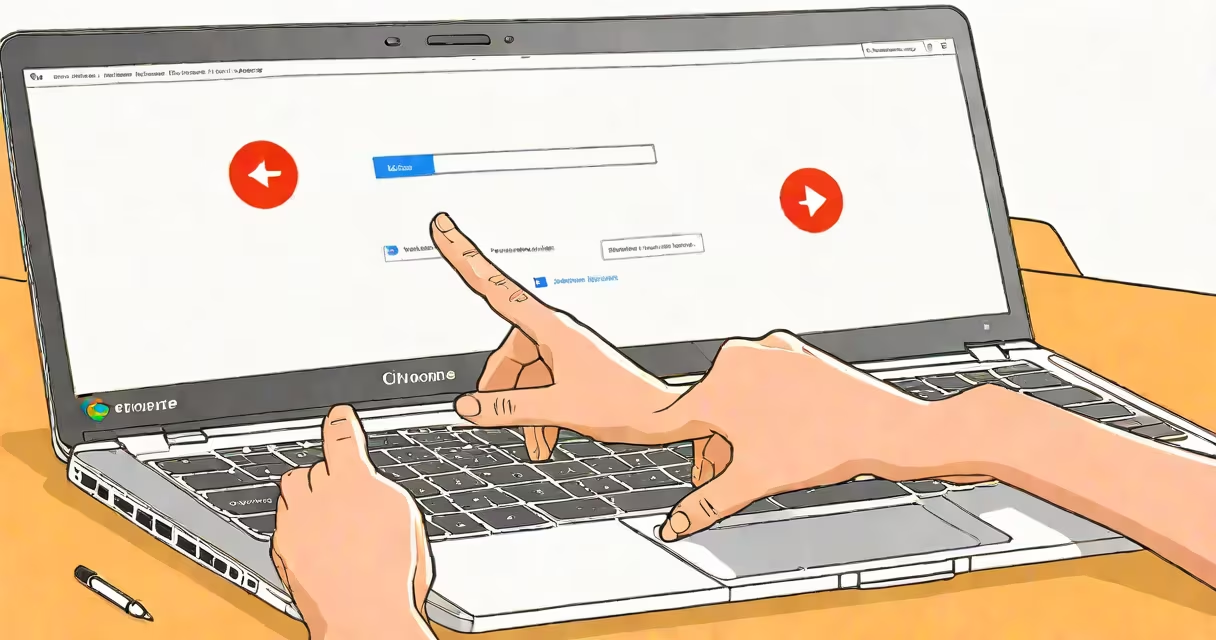
A frozen Chromebook displays a static screen, ignores keyboard and touchpad input, and may fail to respond to power button presses. Immediate action involves a forced restart using the power button and, if needed, a hard reset via the power and refresh keys.
Chromebooks run ChromeOS, a lightweight operating system designed for web-based tasks. When the device freezes, it typically means a process has stopped responding, the system is overwhelmed, or a hardware issue has triggered a lockup. Unlike traditional laptops, Chromebooks lack a full desktop OS, so freezing behavior differs from Windows or macOS systems.
Freezing often occurs during startup, while loading apps, or after extended use. Common causes include outdated software, corrupted cache files, or running too many tabs. A single browser tab with heavy animation or video playback can consume enough memory to stall the entire system.
Press and hold the power button for 10 seconds until the device turns off. Wait five seconds, then press the power button again to restart. This forces a reboot and clears temporary system locks.
If the screen remains black after a forced restart, press and hold the power button and the Refresh key (the circular arrow icon) simultaneously for 10 seconds. This triggers a hard reset, bypassing the normal boot sequence. The device will restart and may show a recovery screen if the system detects corruption.
After a hard reset, ChromeOS checks for system integrity. If errors are found, it automatically attempts to repair itself. This process takes 3-5 minutes. Do not interrupt it. If the device boots normally afterward, the freeze was likely due to a temporary glitch.
Excessive tabs, background sync, and unoptimized extensions are frequent contributors. A single YouTube video in a tab can use over 1 GB of RAM, especially on older models with 2-4 GB of RAM. Running multiple tabs with high-resolution images or scripts increases CPU load and can trigger freezes.
Clear browsing data regularly. Go to Settings > Privacy and security > Clear browsing data. Select "All time" and check "Cached images and files." Run this weekly to prevent cache buildup. Also, disable unused extensions via chrome://extensions.
Update ChromeOS monthly. Check Settings > About ChromeOS > Check for updates. Google releases security patches and performance fixes through automatic updates. Delaying updates increases the risk of instability.
If the device freezes repeatedly after a clean restart, or fails to boot past the Google logo, hardware failure may be involved. Symptoms include constant spinning dots, flashing screens, or inability to access recovery mode.
Use the Chromebook Recovery Utility to create a USB installer. Download it from Google's official recovery site. Burn the image to a USB drive using a working computer. Boot the Chromebook from the USB by pressing Esc + Refresh + Power during startup. Follow on-screen prompts to reinstall ChromeOS.
For devices older than four years, consider replacing the battery. A degraded battery can cause sudden shutdowns or inconsistent power delivery, leading to freezes. Battery health can be checked via Settings > About ChromeOS > Battery.
Unlike Windows or macOS, ChromeOS doesn't have a Task Manager equivalent. You cannot force-quit applications through a GUI. Instead, you must restart the device entirely.
On a Windows PC, a freeze may allow Alt+Ctrl+Delete to open Task Manager. On a Mac, Command+Option+Esc opens the Force Quit menu. Chromebooks lack these tools. There is no way to kill a process without restarting.
| Feature | Chromebook | Windows Laptop | MacBook |
|---|---|---|---|
| Force quit app | No GUI option | Alt+Ctrl+Del → Task Manager | Cmd+Option+Esc |
| Hard reset method | Power + Refresh (10 sec) | Hold power 10 sec | Press and hold power 10 sec |
| Recovery mode access | Esc + Refresh + Power | F11 during boot | Cmd+R during boot |
One overlooked detail: Some Chromebooks have a physical power switch on the side. If your model has one, turning it off and back on is faster than holding the power button. But most newer models rely solely on the power button.
I once observed a student's Chromebook freeze during a timed quiz. The screen was locked, and the device wouldn't respond to any input. I pressed the power button for 10 seconds. The device shut down. After waiting five seconds, I restarted it. It booted normally within 45 seconds. The student resumed the test with no data loss. ChromeOS preserved unsaved work in the browser cache.
This incident highlights a key advantage: ChromeOS saves open tabs and form data in memory. After a restart, the browser restores recent sessions. However, this feature only works if the device wasn't completely powered off for more than 10 minutes.
If the device freezes repeatedly after a clean restart, or shows error messages like "ChromeOS is missing or damaged," use the recovery utility. If the USB installer fails to boot, the internal storage may be failing. Contact Google Support or take the device to a certified repair center.
For schools or businesses, use Chrome Enterprise policies to enforce automatic updates and limit extension installations. This reduces the chance of crashes caused by third-party software.
Understanding what to do when a Chromebook freezes prevents downtime and protects data. Always start with a hard reset. If problems persist, investigate software settings or hardware health. Most freezes resolve with a simple restart.